One of the greatest benefits of using print-on-demand services is that when you place an order, you have the option of ordering as many or as few books as you like. Whether you want one book or thousands of books, Lightning Source is able to fulfill your order.
Once your book is in production and available for printing, you are able to place orders on your Lightning Source account. One of the most important things to remember is that orders will not print if your title does not show an “Available for Printing/Download” status on your Dashboard. If your files are in the review process, or if your eproof has not been approved, orders will not print.
How to Submit an Order
Orders must be submitted by the publishers on their Lightning Source account. We are unable to take orders over the phone, but we are happy to help assist publishers during the ordering process.
To submit an order, click on the Orders section of your Lightning Source account.

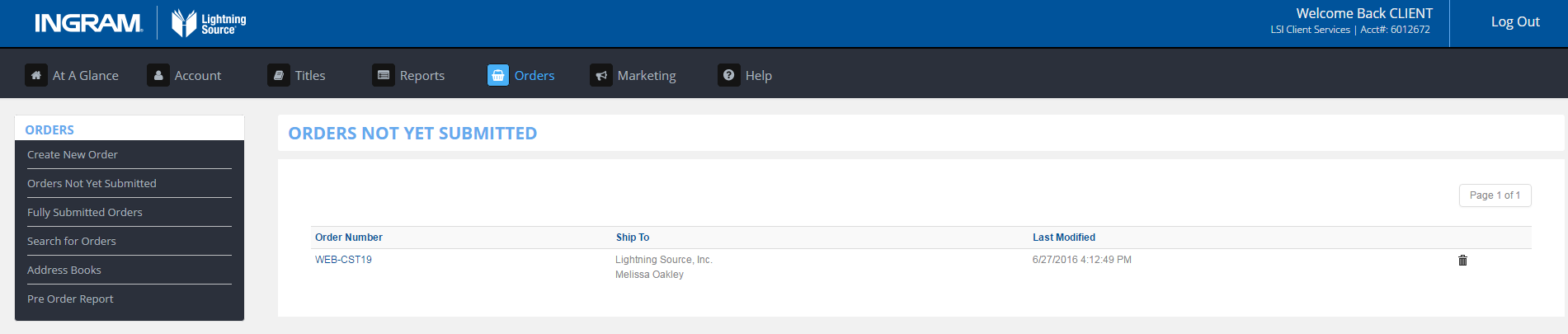
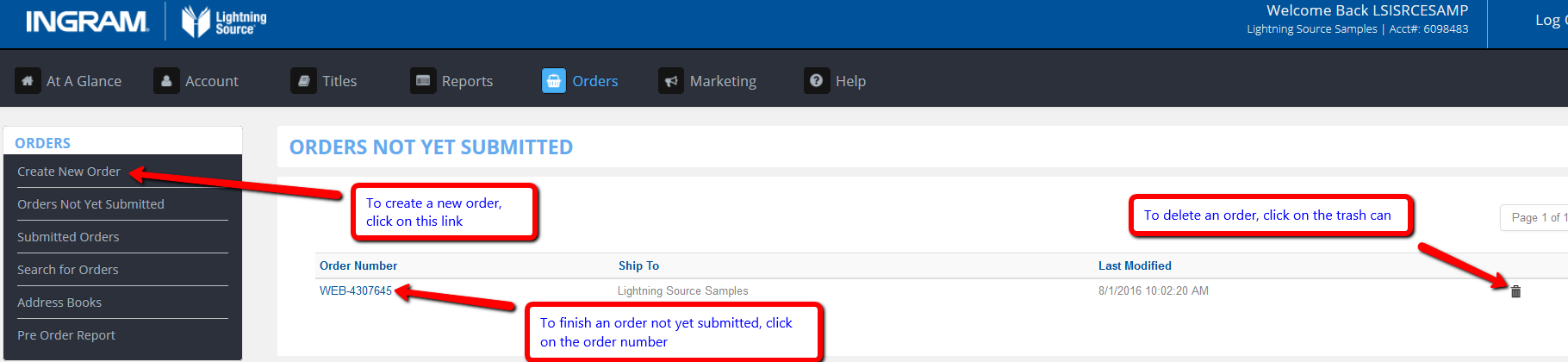
The next page will show any orders that have not yet been submitted for processing. You may delete these orders by clicking on the trash can, or you may click on the order number to finish and submit the order.
Click on Create New Order on the left-hand side of the page to make a new order.
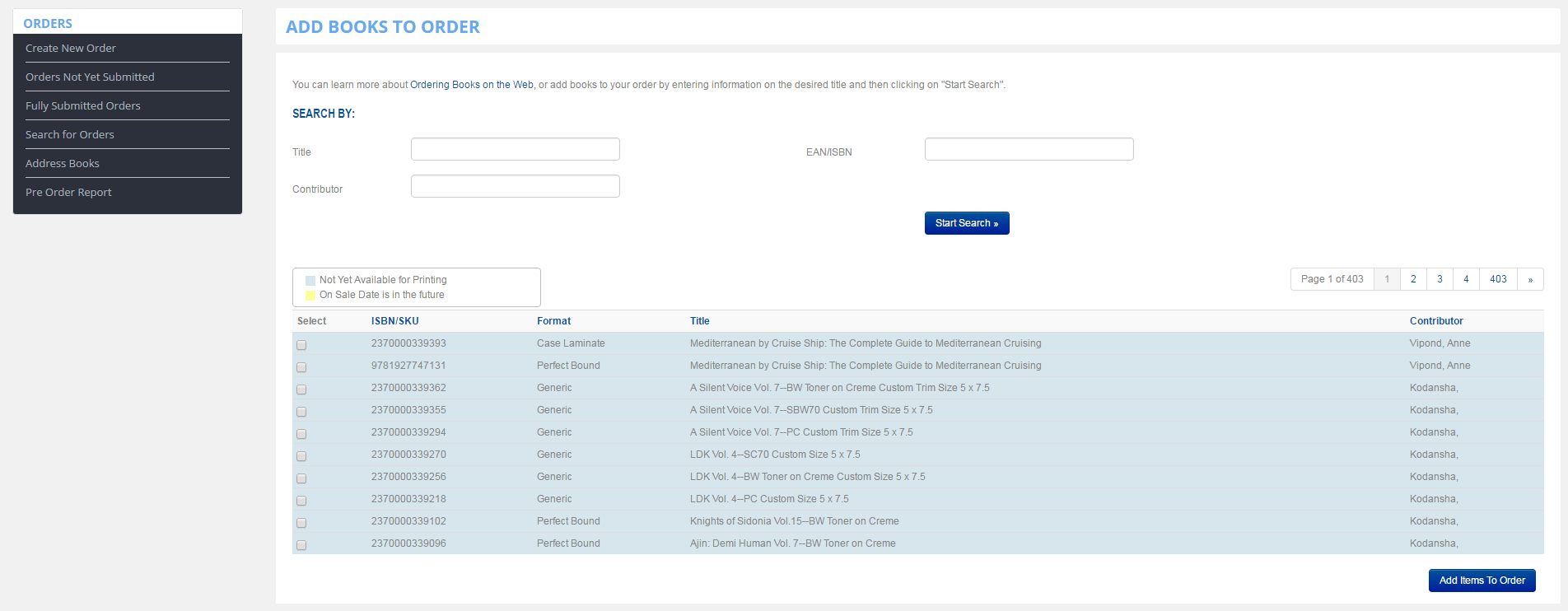
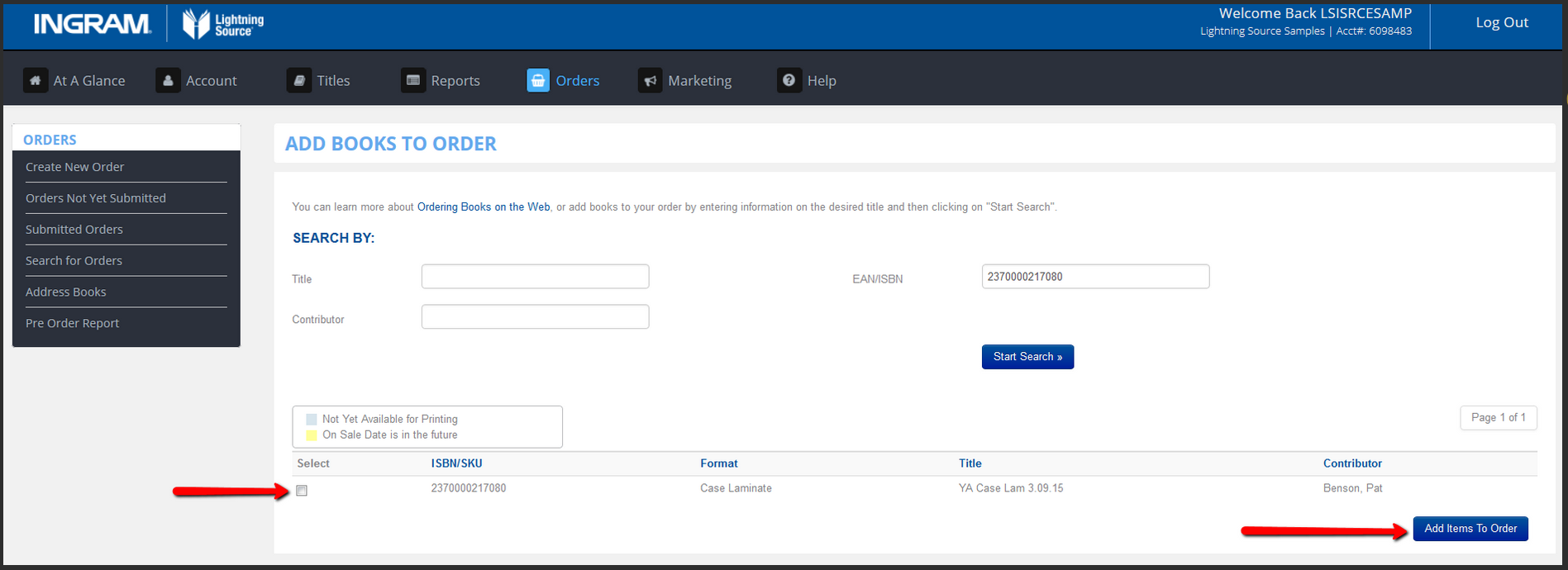
If you click on Create New Order, you will be asked to select which book(s) you would like to order. Click on the gray square under the word Select, and then click on the yellow Add Items To Order button.
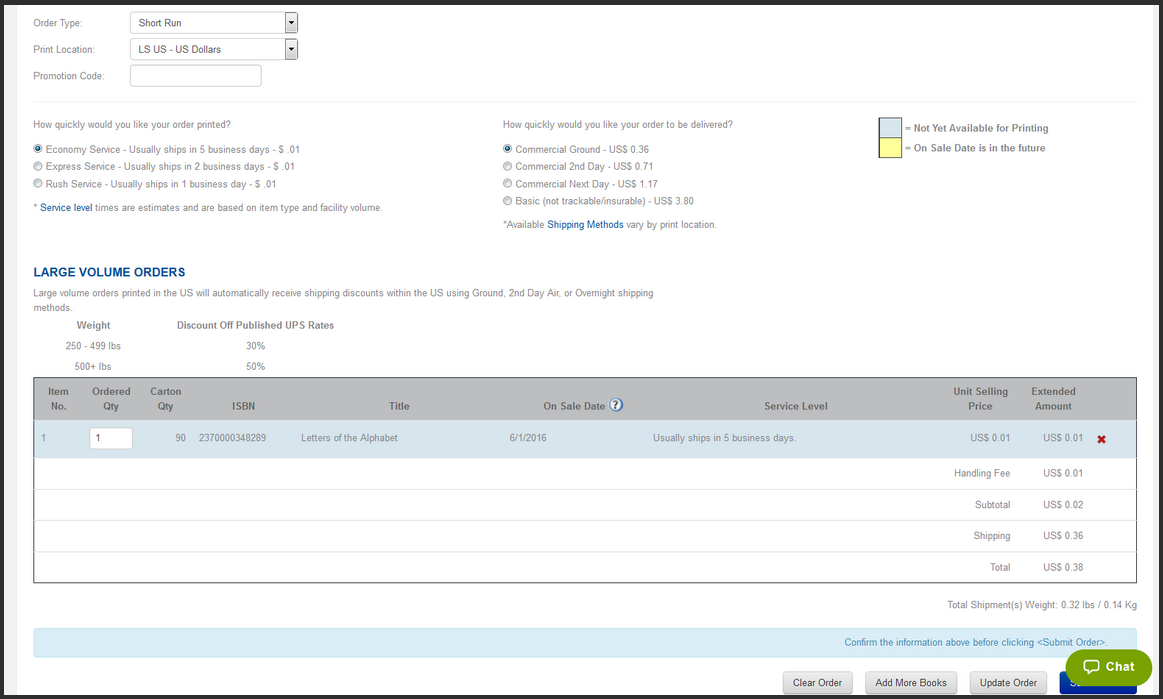
The next page you will see is the Order Details page.
- There is a Return To and Ship To address listed. If you would like to update the address, click on the blue Change button to submit and save the new address.
- You will also see a dropdown menu with our different printing locations. You may select a different printing location if you would like, although not all printing locations are available for every order. Some Ship To addresses will require orders to be printed at certain facilities. Also, not all facilities are currently capable of printing all of the binding and interior types that Lightning Source offers.
- If you have a promotion code, you may enter it on this page.
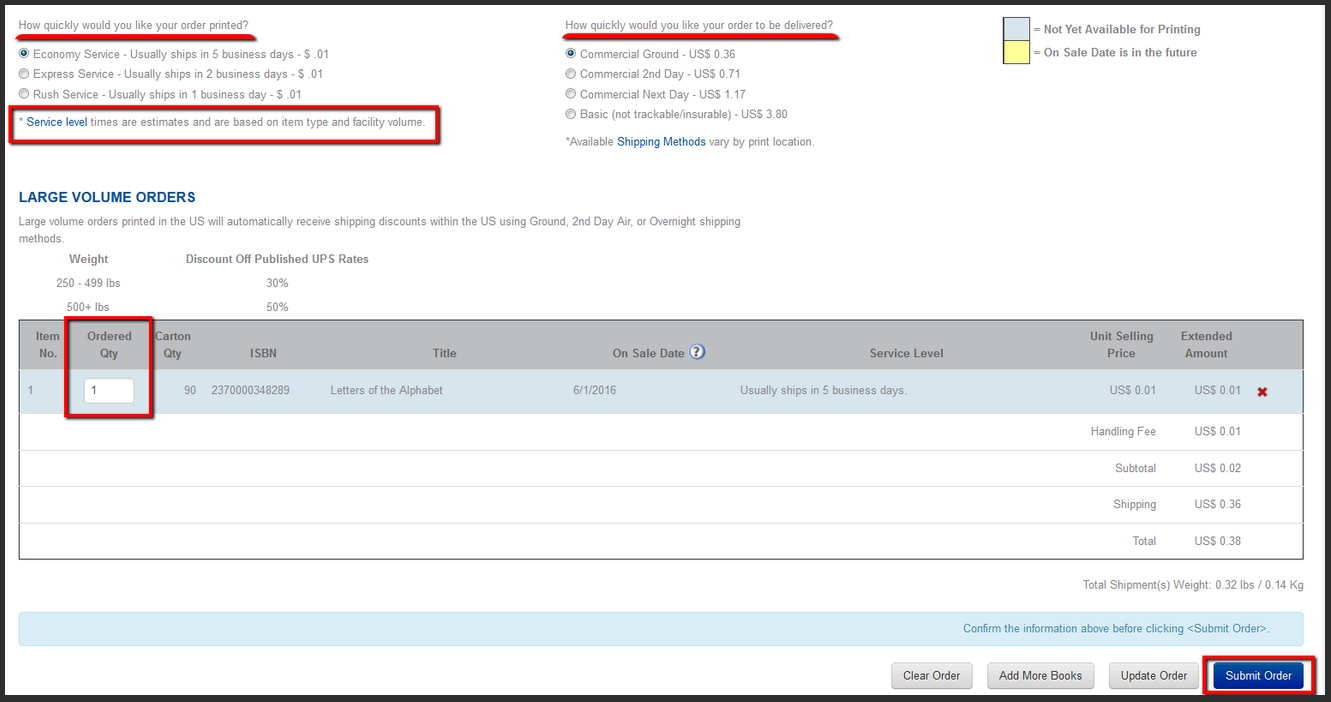
- There are different printing levels, and turn-around times vary based on the binding type and interior type. Also, turn-around times are estimates based on item type and facility volume.
- Different shipping options are also available and may vary based on the printing location and Ship To address.
*It is important to note that non-trackable/non-insurable shipping options do not generate tracking numbers, and we are unable to track or insure orders with this shipping method.
*UPS does not deliver to PO Box addresses. If you select a UPS shipping option (Ground, 2nd Day, or Next Day) as your shipping service and the shipping address is a PO Box, the order may be rerouted to USPS.
*There is a 10% GST charge for printing and a 10% GST charge for shipping for all orders in Australia.
*Shipments into Canada are subject to various fees, including import duties, GST, brokerage fees, and document preparation fees. For more information, click here.
- Once you select your printing and shipping service, you are able to update the number of books you want to order. The default ordered quantity is one, so if you would like to order more than one book, you will need to update the ordered quantity amount and then click on Update Order.
- You may also see Carton Quantity on the order screen. This refers to the number of books that fit in one box.
- Once your order is updated and everything is correct, click on Submit Order.
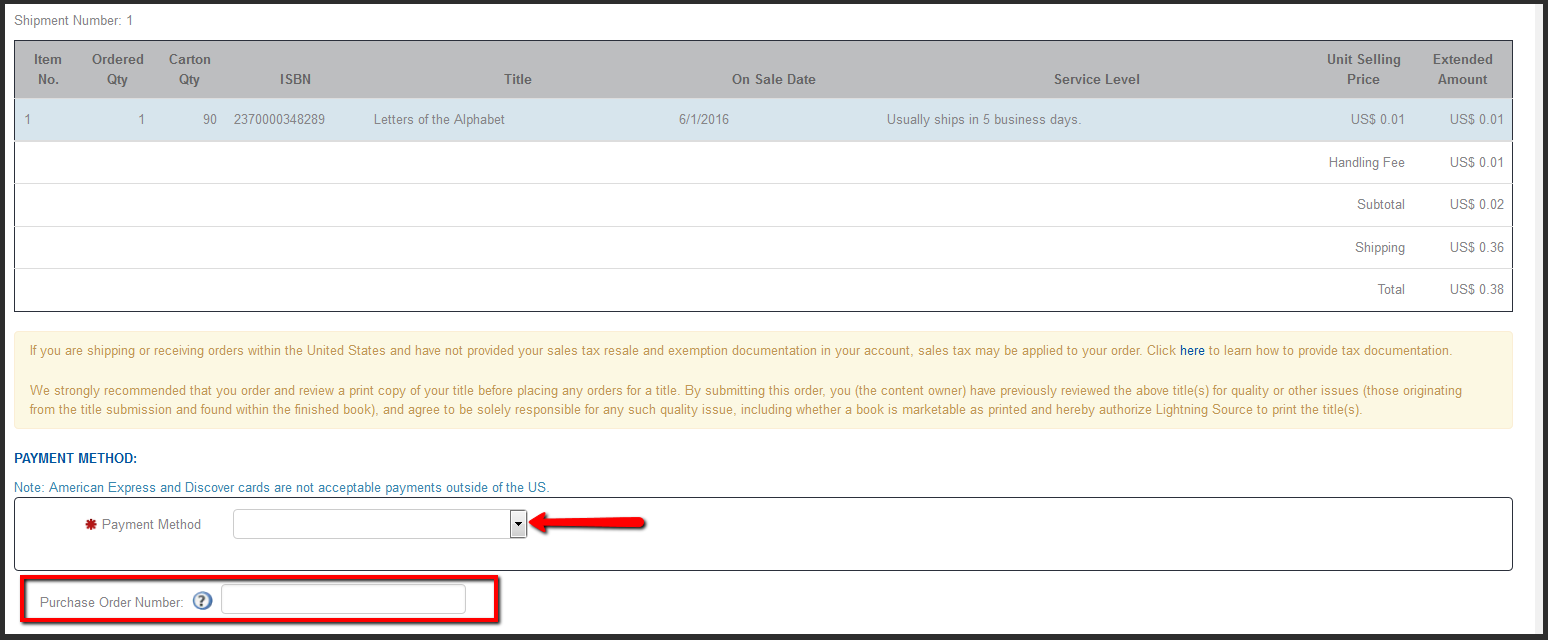
- The next page will ask you for payment information. You will need to select your credit card from the dropdown menu and enter your security code, or you may enter a new credit card.
- The Purchase Order Number is your own number that you may apply to the order.
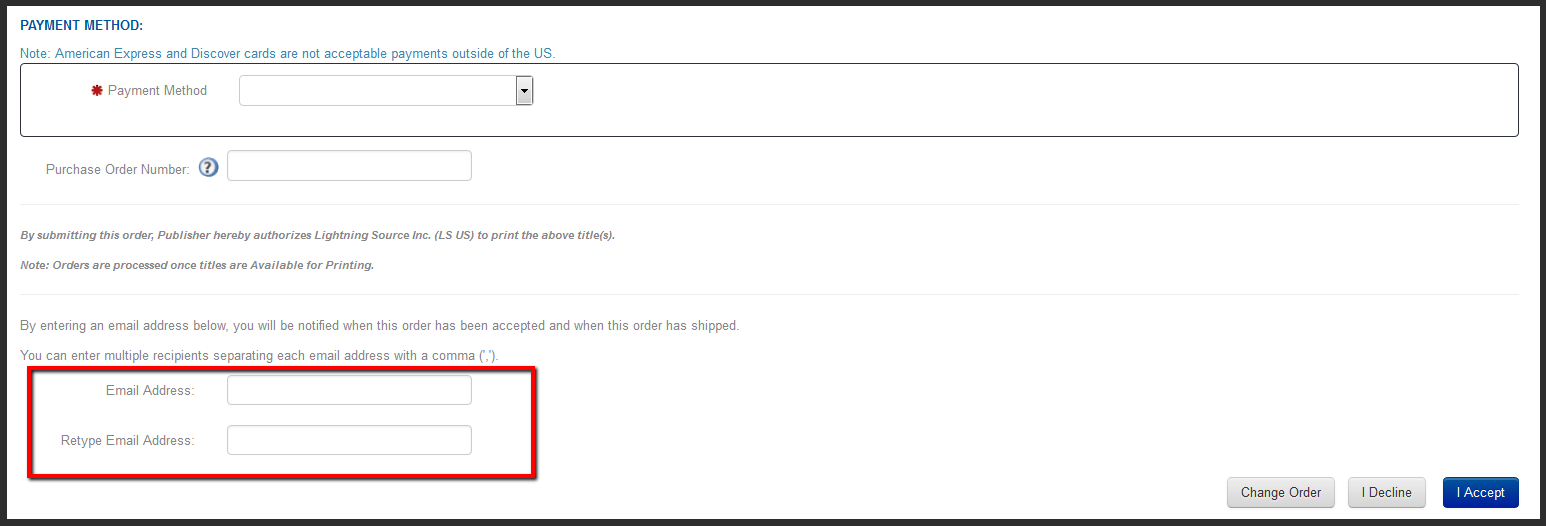
- You may enter your email address to receive a confirmation email when your order ships.
- Once everything is complete, click on the yellow I Accept button. This submits your order for processing, and your order will appear on the Previously Submitted Orders page.

1 Comments